
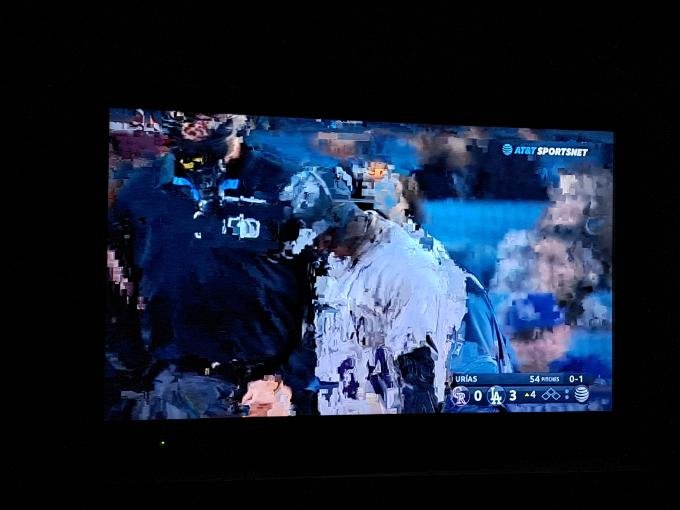
To stop pixelation on TV, adjust your antenna for better reception. Check cables for loose connections. Upgrade your cable or satellite package for higher quality signal. Explore these simple solutions to enjoy a crystal-clear viewing experience.

How to Stop Pixelation on TV
Welcome to our guide on how to resolve one of the most frustrating issues encountered during TV viewing – pixelation. Pixelation can ruin the experience of watching your favorite shows or movies, but fear not! We’ve got you covered with practical tips and tricks to eliminate pixelation and enjoy crystal-clear images on your TV screen.
What is Pixelation?
Pixelation refers to the distortion or degradation of image quality on your TV screen, where the picture appears blocky, blurry, or fragmented. This can occur due to various factors, such as poor signal reception, outdated equipment, or technical glitches. Pixelation can be a common problem, especially when watching digital broadcasts or streaming content.
Check Your Signal Strength
One of the primary reasons for pixelation on TV is weak signal strength. A weak signal can lead to disruptions in the transmission of data, resulting in pixelated images on your screen. To address this issue, you can start by checking your antenna or cable connection to ensure it is secure and properly connected to your TV.
Adjust Your Antenna
If you are using an antenna to receive TV signals, try adjusting its position to improve signal reception. Sometimes, simply repositioning the antenna can make a significant difference in signal strength and reduce pixelation. Experiment with different angles and directions until you find the best position for optimal signal quality.
Upgrade Your Cable Connection
For cable TV users, it is essential to ensure that your cable connection is in good condition. Frayed or damaged cables can interfere with signal transmission and result in pixelation. Consider upgrading to high-quality cables to improve signal quality and eliminate pixelation issues.
Update Your Equipment
Outdated equipment, such as your TV set or set-top box, can also contribute to pixelation problems. Ensure that your devices are up to date with the latest software updates and firmware to optimize performance and prevent image distortion.
Check for Software Updates
Regularly check for software updates for your TV and set-top box to ensure that they are running the latest versions. Software updates often include bug fixes and enhancements that can improve overall performance and eliminate pixelation issues. Set your devices to automatically update software to stay current with the latest improvements.
Invest in High-Quality Equipment
If you continue to experience pixelation despite updating software, it may be time to consider upgrading your TV or set-top box. Investing in high-quality equipment with advanced image processing capabilities can help deliver a smoother and clearer picture, reducing the likelihood of pixelation during viewing.
Optimize Your Display Settings
Adjusting your TV’s display settings can also help minimize pixelation and enhance image quality. By fine-tuning settings such as brightness, contrast, and sharpness, you can achieve a more balanced and vibrant picture on your screen.
Calibrate Your Picture Settings
Explore your TV’s menu options to access picture settings and calibration tools. Opt for presets like “Standard” or “Cinema” mode to enhance image quality and reduce pixelation. You can also manually adjust settings such as sharpness and color temperature to customize your viewing experience according to your preferences.
Reduce Interference
Electronic interference from nearby devices can disrupt TV signals and lead to pixelation. Keep electronic devices such as cordless phones, routers, or microwaves away from your TV to minimize interference. Additionally, using shielded cables can help reduce electromagnetic interference and improve signal quality.
Consult a Professional
If you have tried the above steps and are still experiencing pixelation on your TV, it may be beneficial to consult a professional technician. A qualified technician can assess your setup, identify the root cause of the pixelation issue, and recommend appropriate solutions to resolve the problem effectively.
Book a Service Appointment
Contact your TV service provider or a trusted electronics repair service to schedule a service appointment. A professional technician can conduct a thorough inspection of your equipment, diagnose any underlying issues contributing to pixelation, and perform the necessary repairs or adjustments to restore optimal image quality on your TV.
By following these practical tips and techniques, you can effectively address pixelation on your TV and enjoy uninterrupted viewing of your favorite content with crisp, clear images. Say goodbye to pixelation woes and hello to a flawless TV-watching experience!
Remember, a little troubleshooting goes a long way in resolving pixelation issues on your TV. With the right strategies and adjustments, you can enhance your viewing experience and achieve picture-perfect quality every time you turn on your television.
Why TVs Pixelate or say "No Signal" with an Antenna
Frequently Asked Questions
Why is my TV experiencing pixelation?
Pixelation on your TV can be caused by poor signal reception, low bandwidth, or a weak antenna connection. It can also result from interference or obstacles disrupting the signal transmission.
How can I improve signal strength to stop pixelation on my TV?
To enhance signal strength, try repositioning your antenna to a higher location, away from obstructions. You can also use a signal booster or amplifier to improve the quality of the incoming signal.
What can I do to prevent pixelation during bad weather conditions?
During adverse weather, ensure that your antenna is properly grounded to minimize interference. Additionally, consider installing a weather-resistant outdoor antenna to maintain signal clarity during challenging weather situations.
Is it necessary to reset my TV or cable box to resolve pixelation issues?
Performing a reset on your TV or cable box can help refresh the signal and eliminate temporary glitches that may be causing pixelation. Try power cycling your devices by unplugging them for a few minutes before plugging them back in.
Final Thoughts
To stop pixelation on TV, check your cable connections for any loose or damaged cables. Ensure your signal strength is strong and adjust your antenna if necessary. Additionally, consider upgrading your subscription or contacting your service provider for technical support. By addressing these common issues, you can enjoy a clearer and uninterrupted viewing experience. Remember, taking proactive steps to troubleshoot can help eliminate pixelation on your TV screen.


